
VERY IMPORTANT
HOW TO RESIZE IMAGES FOR SALONS/CIRCUITS
I know some of the participants can’t manage the size before submission. Here is the complete guide to resize your images.
First of all, here is a sample criterion of submission. Participants must check this for every salons/circuit before final submission (you can get it in COE or Rules of the exhibition). COE is stands for conditions of entry & exhibition means salons/circuits.
The size criteria:
Photos must be in jpeg format.
Dimensions:
Maximum image width (For horizontal image) is 1920 pixels.
Maximum image height (For vertical image) is 1080 pixels.
Image resolution must be 300 dpi.
File size is maximum 2 MB.
The process of resize:
• Open the image in photoshop (post processing software).
• Press “ctrl+alt+I” (for windows system) or “cmd+option+I” (for mac). Or click on Image in menu bar, then click on image size.
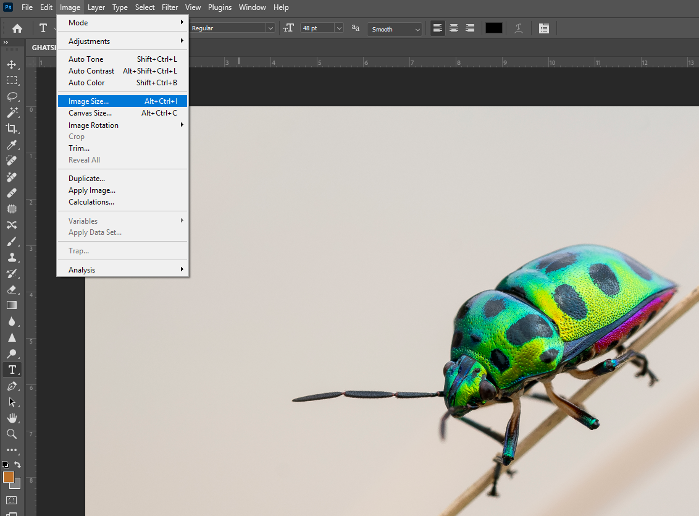
• Then image resize window will open.
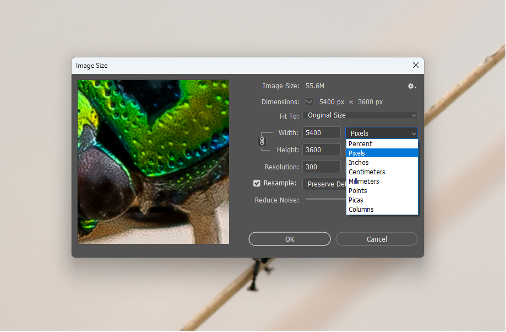
• First change units into “Pixels”
• Then change the height to “1080”. Do not change width. This is very important.

• The width will change automatically & you can see the width is 1620 pixels. Which is according to our criteria.
• Always remember there is a term maximum width, which means you cannot exceed 1920 pixels, but you can stick to any value which is lower than 1920.
• For vertical images, the process is the same.
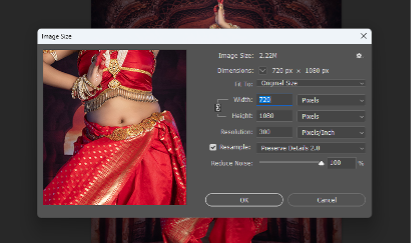
• Change the height of the image and stick to the width which is automatically changed. Here the value of width is 720 pixels. That is good enough for submission. Now click on “OK”. Your image is resized. This is not the end.
• Now saving the image in JPEG format with 2 mb or less size. Larger than 2 mb will not be accepted by the entry software. So, you must stick to 2 mb or less.
• Click on “File”, then “Save As” on menu bar.
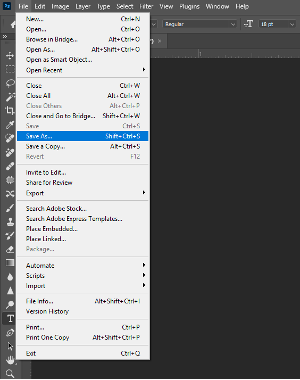
• Now save as window will open
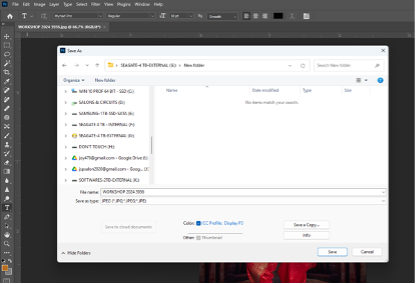
• If you want to rename your image then rename it by changing name in “File Name” section. Then change the “Save as type” to “JPEG (*.JPG, .JPEG, .JPE)”, then click on “Save”.
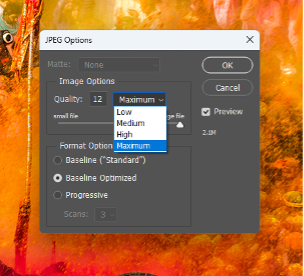
• The next window is very important.
• 1st Change the quality to “Maximum”. Then tick on “Preview”. Now check the size showing below the “Preview” button. If it is below the 2 mb size, then click ok and you are done. But if the size showing same or greater than 2 mb, then change the “Quality” value to lower value to set the size.

• Now you can see the “Quality” is decreased to 11 & you can see the size become 1.3 mb. Now it’s ok for submission. Click on “OK”
• You are done. The image is ready to submit.